How to create a QR code: a free, step-by-step guide
To create a QR code, open a QR code generator, choose what the code should open, type or paste it in, and download the image. With QR Code Spot it takes under a minute, it's free, and a plain link or Wi-Fi code needs no account. Here's each step, a quick recipe for every common kind of code, and what to check before you print.
Create a QR code in 7 steps
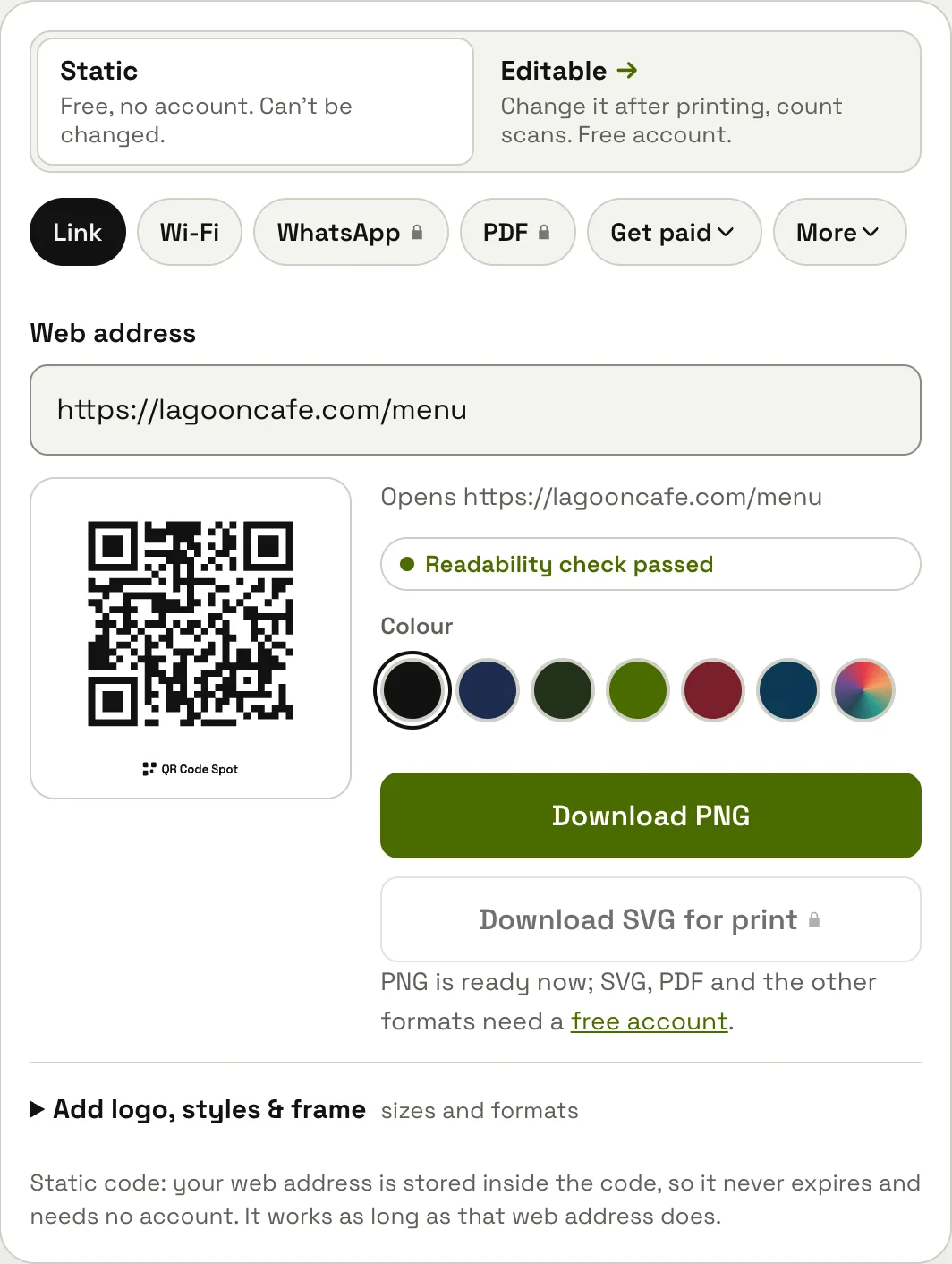
- Open the generator. Go to the free QR code generator on the QR Code Spot home page. It works in any browser, on a phone or a computer, and there's nothing to install.
- Choose static or editable. A static code stores your content inside the code: free, no account for links, text, Wi-Fi and social profiles, and it never expires, but it can't be changed. An editable code can be pointed somewhere else after printing and counts its scans. It needs a free account.
- Choose what the code opens. Pick the type: Link, Wi-Fi, WhatsApp, PDF, a payment under Get paid, or contact card, email, phone, SMS, location, event, Google review and more under More.
- Type or paste your content. Fill in the boxes, like the web address or the Wi-Fi name and password. The code appears as you type, and a readability check tells you whether it will scan.
- Style it (optional). Choose a colour. With a free account you can use any colours and the Classic, Rounded and Dots styles. Paid plans add your logo, frames with words like “Scan for menu”, and more styles.
- Download it. Press Download PNG for screens, messages and slides. For print, a free account adds SVG, PDF, EPS and a print-ready PDF for print shops.
- Test it before you print. Scan it with two phones, from the distance people will. Then print one copy and scan that too.
Static or editable: decide before you print
This is the one choice you can't undo once the code is printed.
| Static | Editable (dynamic) | |
|---|---|---|
| What's inside | Your content itself | A short link to your content |
| Change it after printing | No | Yes, any time |
| Scan counts | No | Yes: by day, phone and country |
| Expires | Never | Never, on QR Code Spot |
| Account | None for links, text, Wi-Fi and social profiles | Free account, 10 codes |
| Best for | Wi-Fi, contact cards, things that won't change | Menus, flyers, offers, anything you might update |
A warning about other generators: many make editable codes by default and stop them working when a free trial ends. Before you print, check what the code holds. We explain how in do QR codes expire?
How to make each kind of QR code
A website or any link
Choose Link and paste the address. Shorter is better: a long link makes a busier code. Make it editable if the page might move. Editable link codes →
Wi-Fi
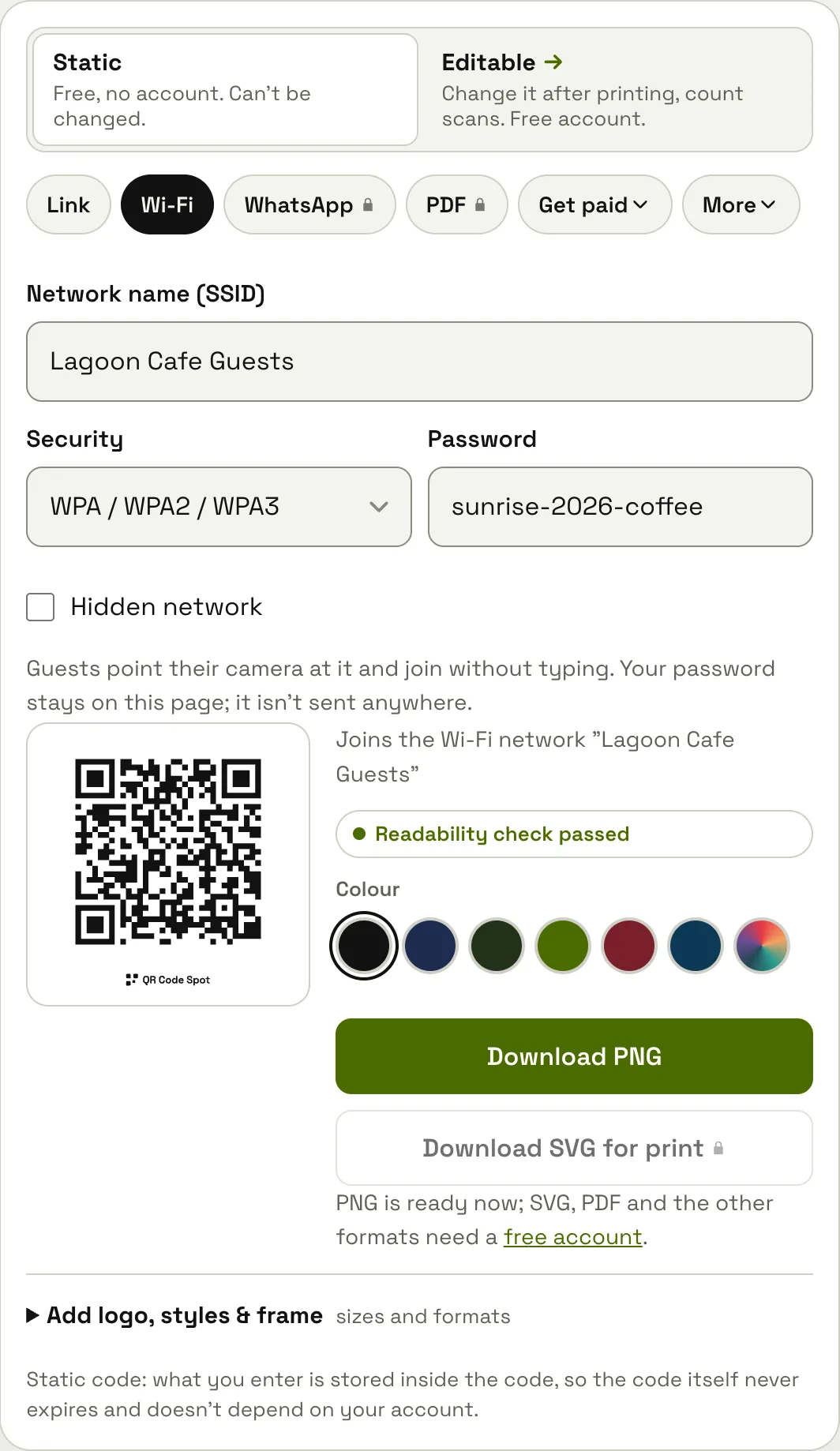
Choose Wi-Fi, type the network name and password, and pick the security (almost always WPA). Guests point their camera at it and join without typing. The password isn't sent anywhere. Wi-Fi QR code →
Choose WhatsApp, type your number with the country code, and add a first message if you like. One scan opens a chat with you. WhatsApp QR code →
A contact card
Under More, choose Contact card and fill in your name, phone, email and website. One scan offers to save you to the phone's contacts. Fewer fields make a simpler code. Contact card QR code →
A PDF, menu or image
Choose PDF (or Image under More) and upload the file, up to 20 MB. Scans open it on its own page, and you can swap in a new file without reprinting. File hosting comes with paid plans. For a restaurant, a menu page reads better on a phone than a PDF. PDF QR code →
A payment
Under Get paid, choose your system: UPI in India, Pix in Brazil, SEPA in the euro area, PromptPay in Thailand, VietQR in Vietnam, or a PayPal, Revolut, Wise or other payment link. Pay a small amount to yourself first to check it. Payment link QR code →
Google reviews
Under More, choose Google Review and paste your review link or Place ID. One scan opens the box for leaving a review. Google review QR code →
A Google Form
Under More, choose Google Form and paste the link from the form's Send button, not the editing link. Google Form QR code →
An event
Under More, choose Event, add the name, start time and place. Scanning offers to add it to the phone's calendar. Event QR code →
A location
Under More, choose Location and type an address or paste coordinates. It opens in the phone's maps app. Location QR code →
Email, phone call or text message
Under More, choose Email, Phone or SMS. Include the country code so it works for visitors from abroad. Email QR code →
Hundreds at once
For name badges, products or tables, upload a spreadsheet and get up to 500 codes in one ZIP of PNG, SVG or PDF files. Bulk QR codes →
On a phone, or on a computer
The steps are the same on both. On a phone, open qrcodespot.com in your browser, make the code and press Download PNG: the image is saved to your photos or downloads, ready to share or send to a printer. On a computer, the SVG and PDF downloads (with a free account) are the best files for a designer or print shop, because they stay sharp at any size.
Some browsers, like Chrome, can also make a quick code for the page you're viewing, from the share menu. That's fine for passing a link to your own phone, but it only does web pages, with no Wi-Fi, contact card, colours or print files.
What's free
| No account | Free account | Paid plan | |
|---|---|---|---|
| Types | Link, text, Wi-Fi, social profile | Every type | Every type, plus PDF and image hosting |
| Design | Plain, one colour | Any colours; Classic, Rounded, Dots | Every style, logos, frames |
| Files | PNG, 10 a day | PNG, SVG, PDF, EPS | The same, without the small QR Code Spot logo |
| Editable codes | None | 10 | From 50 |
Paid plans start from $4/month billed annually ($5 monthly). Want every kind of static code with no account at all? Our sister site QR Never Expires makes them free, with no sign-up.
Mistakes to avoid before you print
- A code that depends on a trial. If a generator gave you an editable code, find out what happens when the trial ends. A static code, or an editable code on QR Code Spot, keeps working.
- A long link. More characters means more, smaller squares. Drop tracking tags you don't need, or use an editable code's short link. Our post on how much data a QR code holds has the numbers.
- Pale colours. The code must be clearly darker than its background. Yellow, light grey and a light code on a dark background are the usual failures.
- Printing too small. At least 2.5 cm wide, and about a tenth of the scanning distance. The generator suggests a size when you choose how far away people will scan it.
- No white border. Leave the quiet zone around the code. Phones need it to find the code.
- A page that isn't made for phones. Everyone who scans is on a phone. Open the link on yours first.
- Not testing. Print one copy and scan it with two different phones before you print a batch. If one doesn't scan, see why a QR code isn't working.
For paper, materials and file types, read our QR code printing guide.
Questions
How do I create a QR code for free?
Open the generator on qrcodespot.com, choose what the code opens (a link, Wi-Fi, WhatsApp and more), type your content and press Download PNG. Link, text, Wi-Fi and social profile codes need no account. A free account adds every other type, SVG and PDF downloads, and 10 editable codes.
Do I need an app to make a QR code?
No. A QR code generator works in the browser on any phone or computer. To scan one, most phones only need the camera app.
How do I create a QR code on my phone?
Open qrcodespot.com in Safari, Chrome or any browser, choose the type, type your content and press Download PNG. The image saves to your phone, ready to share or send to a printer.
Do QR codes expire?
A static code never expires: what it opens is stored inside the code. An editable code depends on the service behind it. On QR Code Spot, editable codes keep working whatever your plan, with no scan limit.
Can I change a QR code after printing it?
Only if it's an editable (dynamic) code. It holds a short link, so you can change where it goes at any time and every printed copy follows. A static code can't be changed: you'd need to print a new one.
How big should I print a QR code?
At least 2.5 cm (1 inch) wide, and about a tenth of the distance people scan it from: 10 cm for 1 metre. Codes that hold a lot need to be bigger.
Can I put my logo in a QR code?
Yes. The code then uses more error correction, so it still scans with part of it covered. On QR Code Spot, logos and icons come with paid plans, from $4/month billed annually ($5 monthly), and every design is scan-tested before you can download it.
More from the blog
Create your QR code now
Free, in your browser, with no app. Plain link and Wi-Fi codes need no account.