Can a printed QR code be saved? What to do when it stops working
The menus are printed, the flyers are out, the stickers are on the doors, and the code now opens an upgrade page or an error. Whether those copies can be saved comes down to one thing: what's inside the code. Sometimes you can fix every printed copy in a few minutes. Sometimes you can only replace them. This is how to tell which, and what to do in each case.
 Plan ended
- The old code stops
- Read what's inside
- Remake it
- Sticker over the old one
1. Find out what's inside (two minutes)
Point your phone's camera at the code and read the address it shows before you tap. Or give the code, a photo of it or a screenshot to the QR Never Expires checker. It reads the code on the page, so nothing is uploaded, and tells you what kind of code it is in plain words.
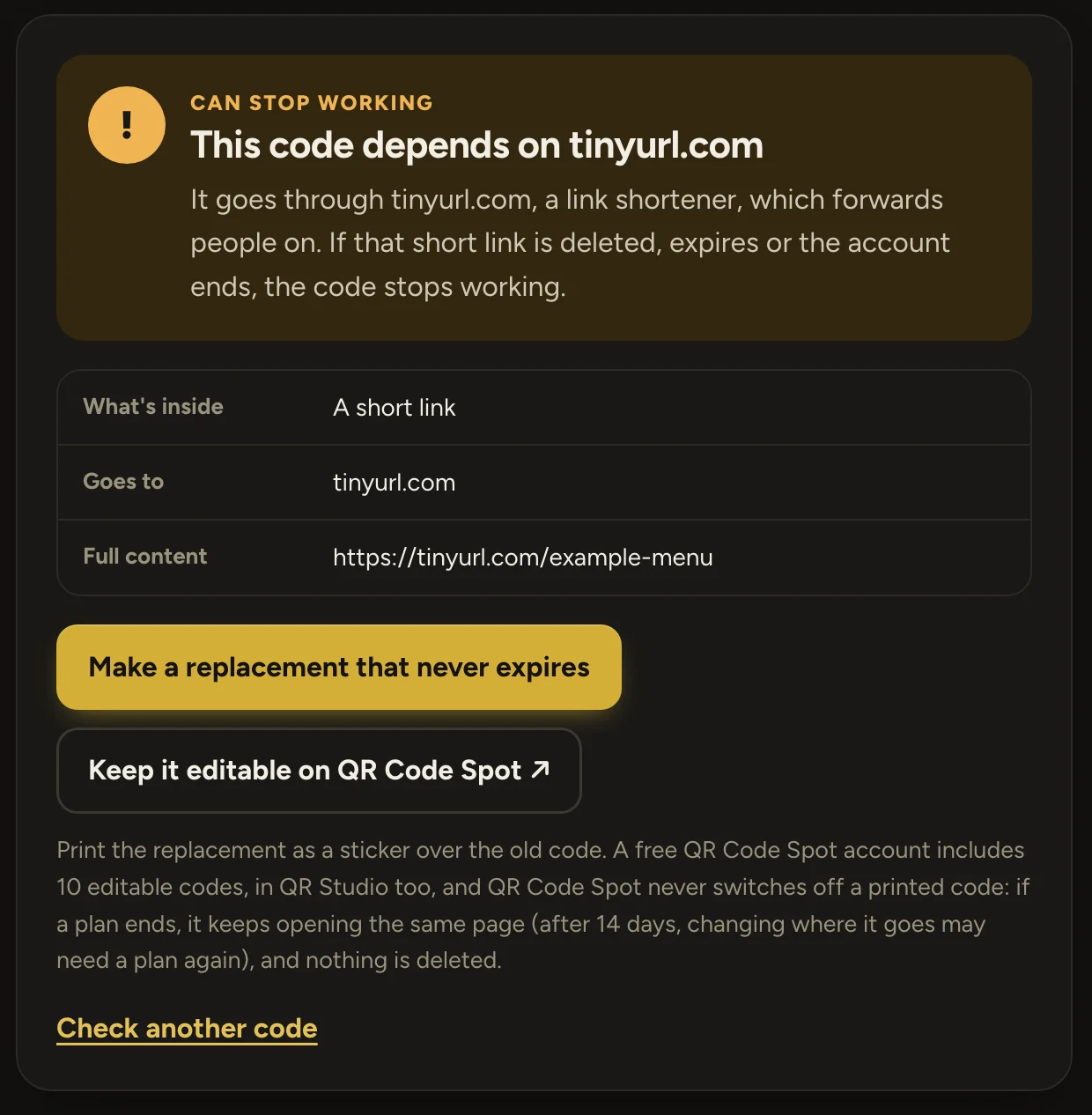
Every code falls into one of three groups:
2. If the content is in the code
Good news: the code itself can't expire. If it opens the wrong thing, the problem is at the other end, and you can usually fix every printed copy without reprinting anything:
- Your website moved, or the page was renamed. Set up a redirect on your website from the old address to the new one. Every printed code starts working again at once. Your web host or whoever built the site can do it in minutes.
- Your domain expired. Renew it as soon as you can. If someone else has already bought it, the printed codes can't be saved and could send people somewhere you don't control, so replace them.
- A Wi-Fi code stopped connecting. The network name or password changed. Change it back, or make a new code.
- It doesn't scan at all. That's printing, not expiry: too small, too little contrast, or damaged. QR code not working? walks through those causes.
3. If it's a short link through a service
This is the hard case, and it's worth being straight about it. The code holds the service's link, not your page. Only that service can decide where the link goes, so nobody else can redirect your printed copies: not us, not another generator, not a new code. What you can do, in order:
- Sign in to the service, if the account still exists. Many reactivate codes when a plan is paid again. It's often the quickest way to get the printed copies working, even if you only keep it while you replace them.
- Make a replacement that doesn't depend on that service (next section), and print it as a sticker over the old code. The sticker should be a little bigger than the old code, white border included, so a camera can't see both.
- Replace the copies that matter most first: the front door, the tables, the packaging still in stock. Leave the rest until the next print run.
Not every service ends codes when a plan does. Some say their codes don't expire, and the checker says so when it recognises them. Even then the code depends on that account and that link: if either is deleted, the printed copies stop. Old goo.gl links are a special case: Google has been retiring them, so treat those as already gone.
4. Remake it
Remake an old code is on both our makers. Upload a photo or screenshot of the old code, and it's read in your browser and filled into the maker: the same content, and the same colours if they had any. You can restyle it and download it straight away.
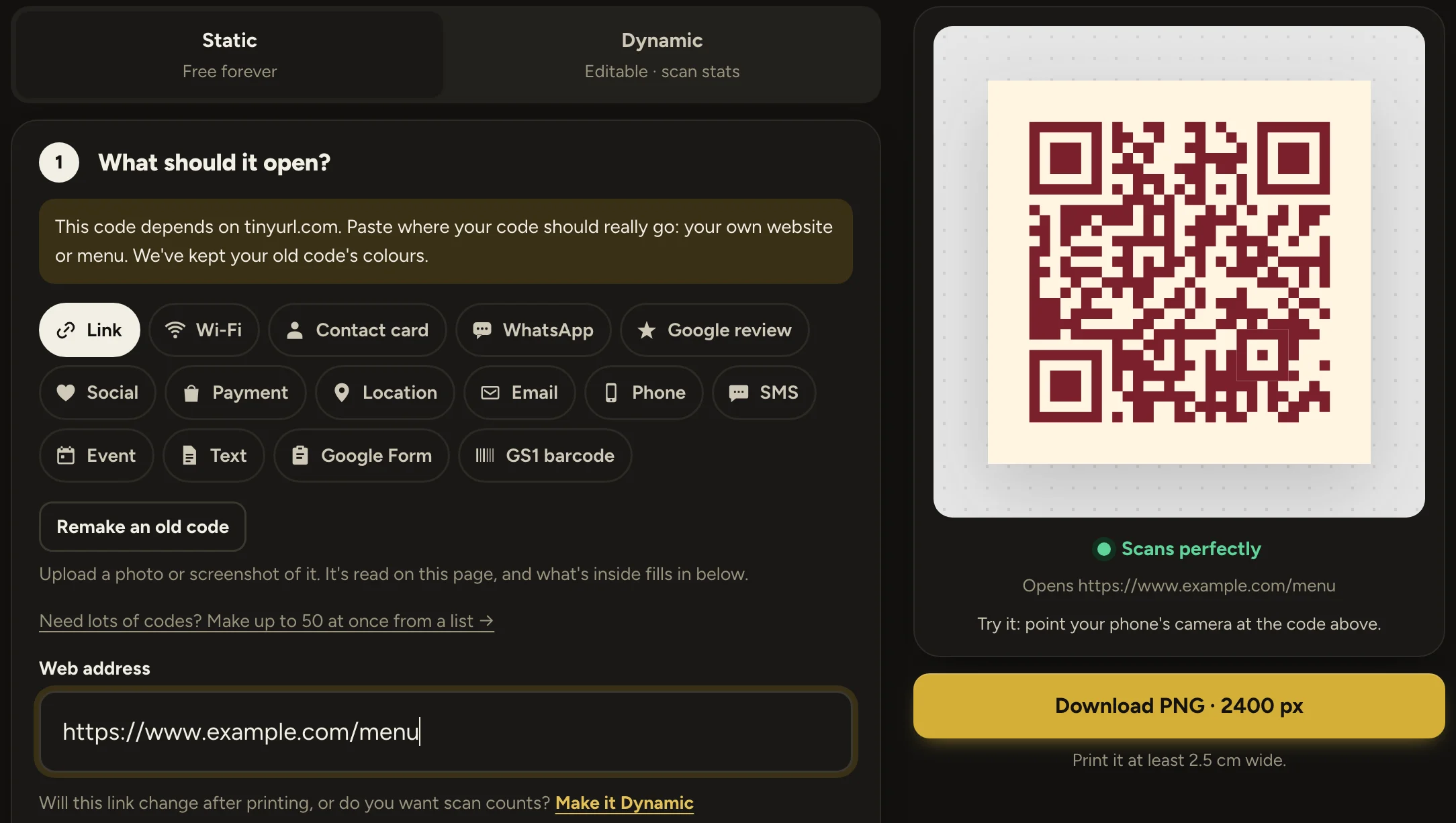
A few details that make it safe to use:
- For a short-link code, the link box starts empty. The real address was never in the code, so we don't guess. You type your own page, and the note above the box tells you why.
- Everything else is copied exactly: links, Wi-Fi, contact cards, events, email, phone, text messages, locations, WhatsApp, Google Forms, Google reviews and GS1 barcodes. Anything we don't have fields for, like a payment code, is kept as text, character for character, which makes the very same code.
- A Wi-Fi password is carried over but never stored. The picture and what's inside it don't leave your browser.
- Every remade code is scan-tested before download, like every other code from our engine.
5. Static or editable?
The last decision is what kind of code the replacement should be. Both are honest choices; they just depend on different things.
qrneverexpires.com
- The address is stored in the code
- Free, no account, can't be switched off
- Can't be changed after printing
QR Code Spot
- Change where it goes, see scan counts
- Free account includes 10 of them
- Depends on QR Code Spot, with a written promise
If you choose editable, here's what you're depending on. We never pause a printed code or put a paywall in front of it. If a plan ends, every code keeps opening the same page; after 14 days, changing codes above the Free limit needs a plan again. If QR Code Spot ever closed, we'd give at least 6 months' notice, and editable codes would stop after that, so they'd need replacing too. All of it is in our guarantee.
One way to make even an editable code portable: put your own domain in its link. Codes printed with go.yourbusiness.com can be pointed at another service later, because the domain is yours.
6. Before you print the replacement
- Scan the new code with two different phones, from the distance people will use.
- Print it at least 2.5 cm wide, bigger for walls and windows.
- Cover the old code completely, quiet zone included. A half-covered old code next to a new one can make a camera open the wrong one.
- If you're replacing a short link, keep the old account running until the stickers are on, if you can.
And for next time: before you print a large run, run the code through the checker. Thirty seconds then saves a reprint later.
More from the blog
Check a code, or remake it
Free on QR Never Expires, with no account. Or keep it editable on QR Code Spot.