Don't put a PDF behind your menu QR code: what to do instead
Most menu QR codes open a PDF: the printed menu, saved as a file. It works, but on a phone it's a page made for paper. Guests wait for it to download, pinch and zoom, scroll sideways, and still can't tell what's vegetarian or that the latte is off today. Here's what guests are looking for when they scan, and how to give it to them on a page you can change any time.
menu.pdfDownload, pinch, zoom, scroll sideways
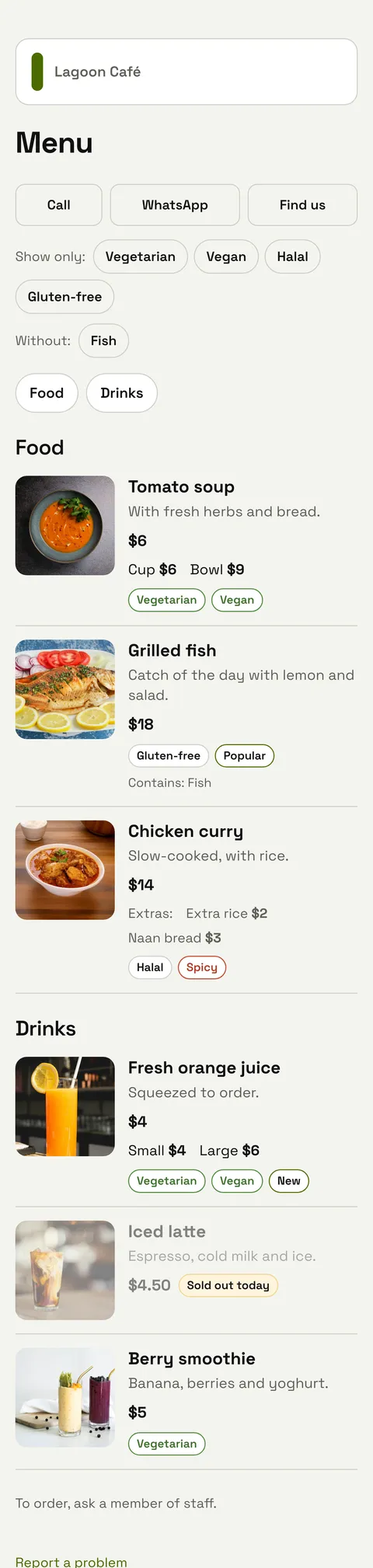
A menu pageFits the screen, filters, sold out today
What's wrong with a PDF menu
Nothing, on paper. The trouble starts when it's opened on a phone:
- It's made for an A4 page. The text is tiny on a phone screen, so guests zoom in and lose their place, or zoom out and can't read it.
- It has to download first. A menu with photos is often several megabytes. On a weak signal at a table by the window, guests look at a blank screen.
- It's out of date the day a price changes. Changing it means editing the design file, saving it again and uploading it. So most PDF menus show last season's prices.
- It can't answer questions. Which dishes are vegan? What has nuts in it? Is the curry still on? Guests have to wave for a waiter to find out.
- It's in one language. A second language means a second PDF and a second code, or a menu twice as long.
A PDF is still fine for a set menu you print once a year, or as a download next to your page. It just shouldn't be the first thing a guest sees after scanning.
What guests look for in the first ten seconds
When people scan a menu code, they usually want the same few things: to find the section they want, see prices, look at photos of the dishes they're unsure about, and check what they can eat. A page made for a phone puts those first:
- Section buttons at the top, so Drinks is one tap away instead of four screens down.
- Prices that line up, with sizes next to each other: Cup $6, Bowl $9.
- Photos for the dishes people ask about. Not every item needs one. The signature dishes and desserts sell best with a picture.
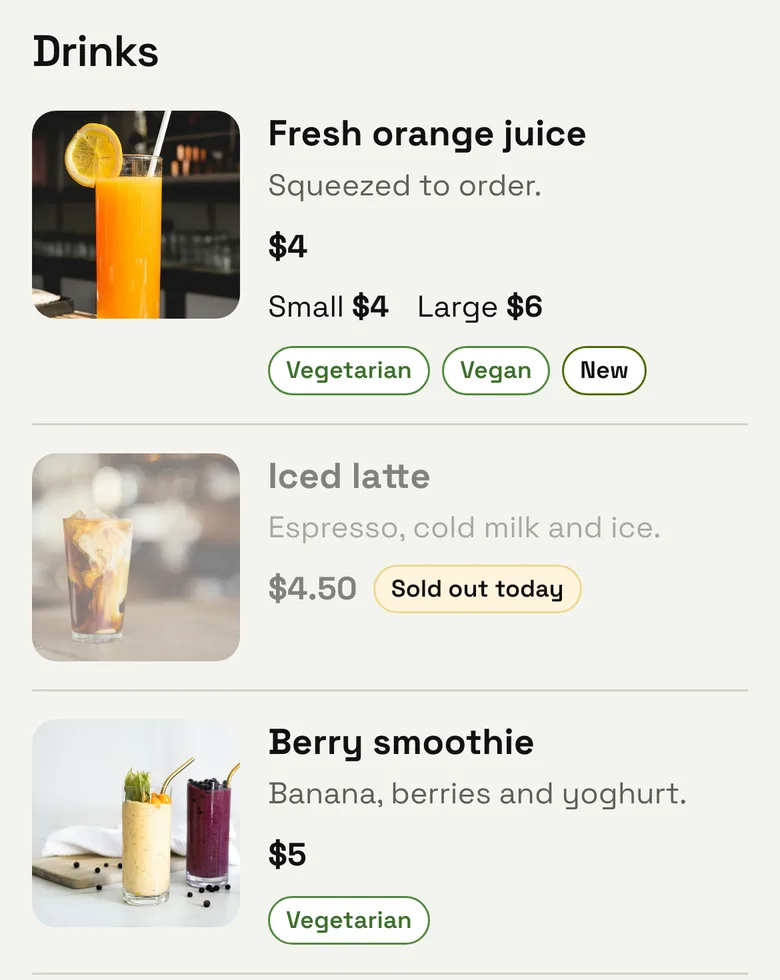
- Filters for what guests can eat: show only Vegetarian, Vegan, Halal or Gluten-free, or hide dishes with nuts, milk or fish.
- Buttons to reach you: Call, WhatsApp, Find us.
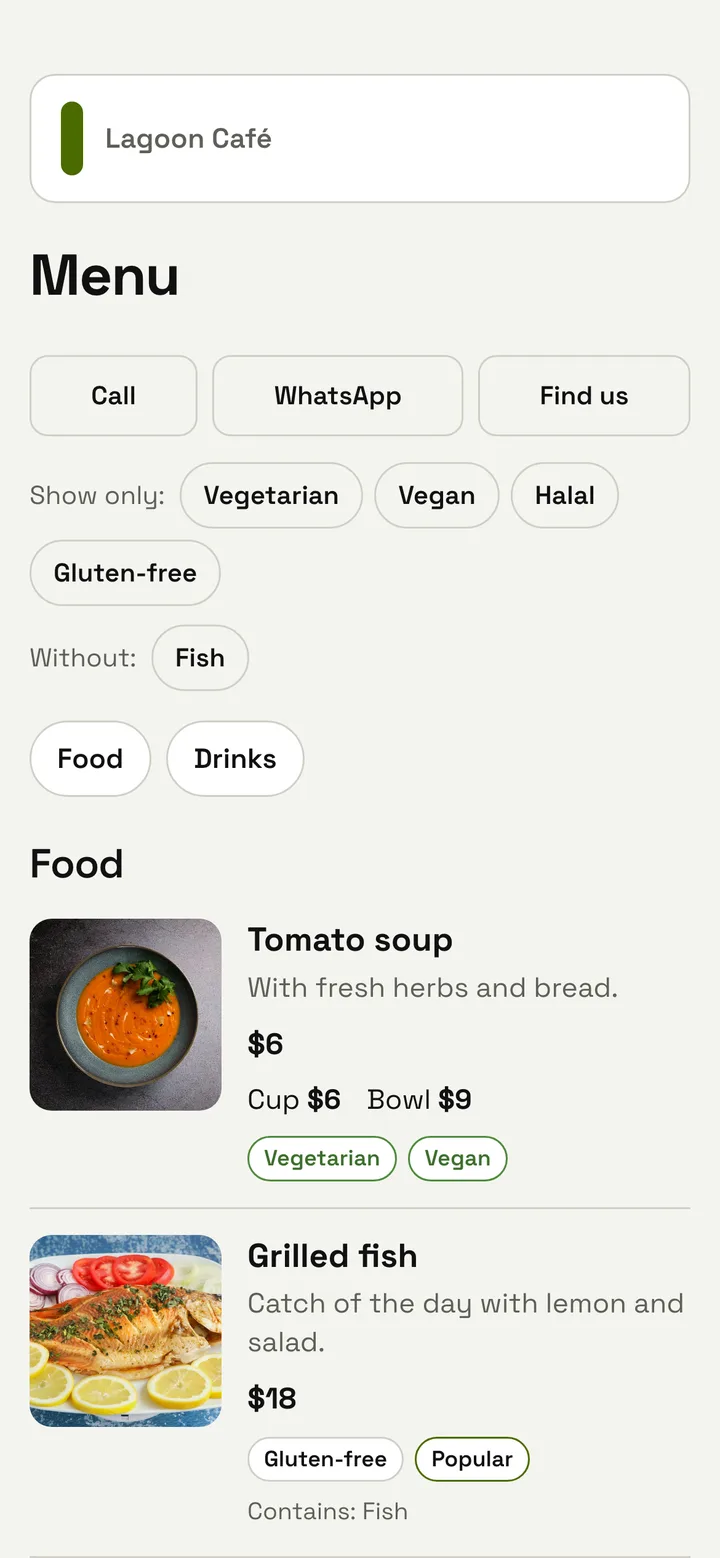
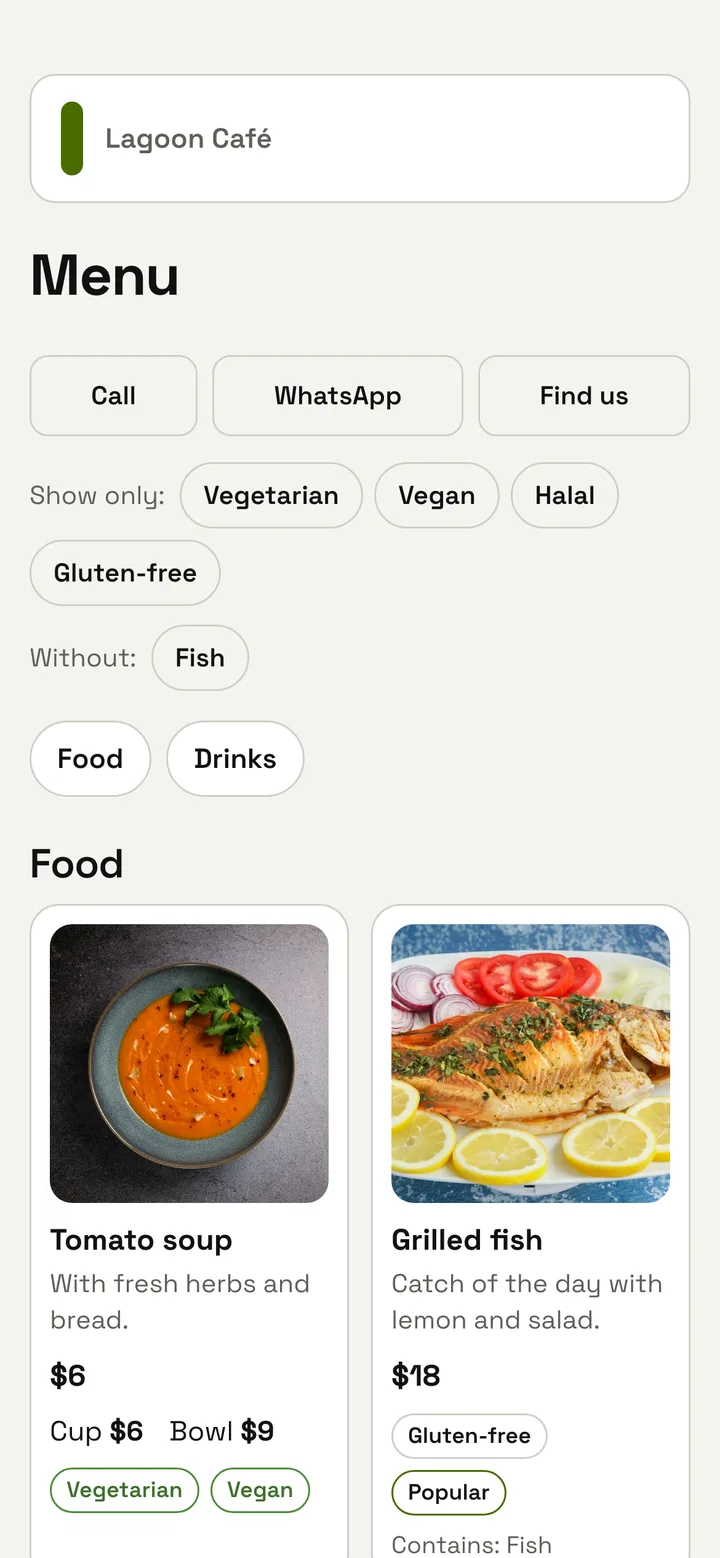
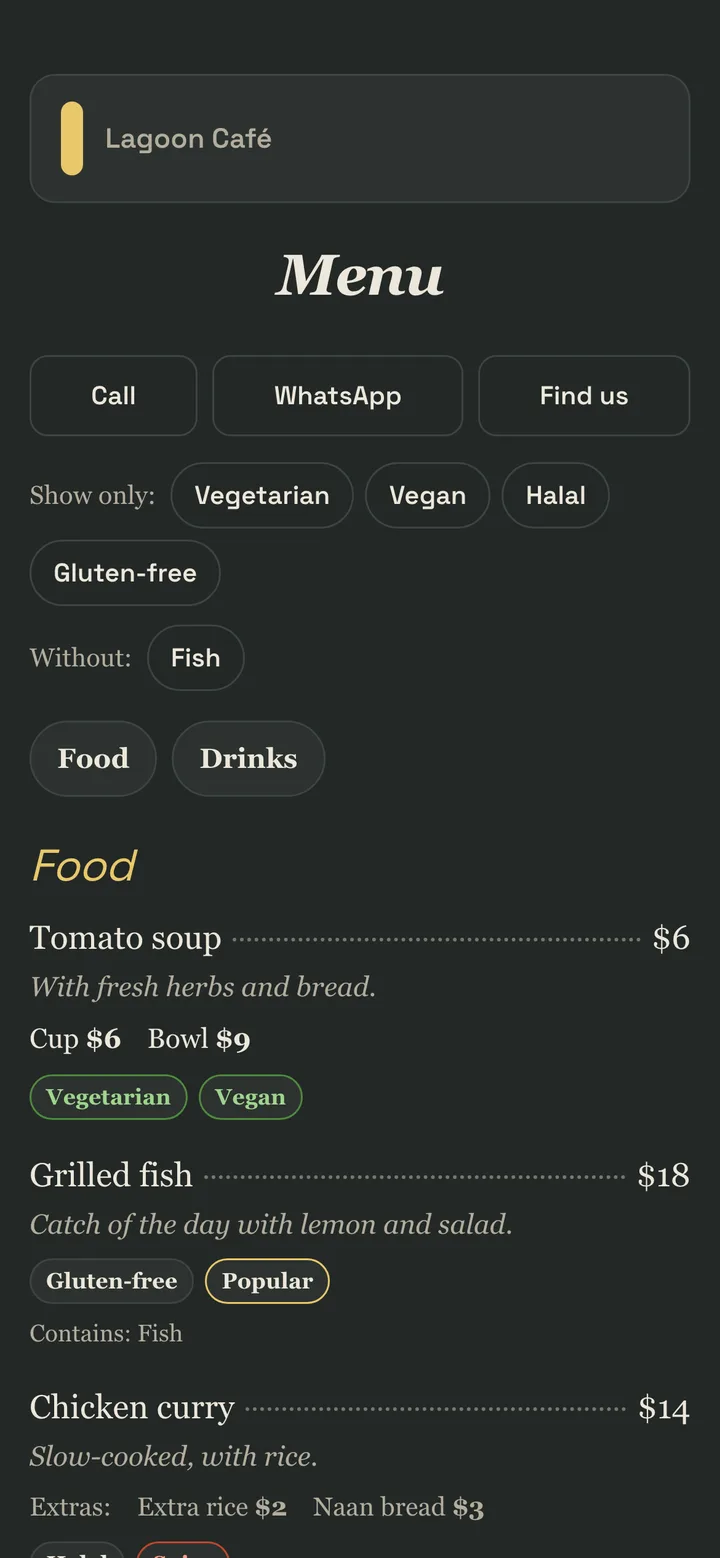
The same menu in three of the eleven looks. Changing the look doesn't change the items.
Things paper can't do
Once the menu is a page, it can do what no printed menu can:
- Sold out today. One tick, and the dish is greyed out with a label. It comes back by itself the next morning, so nobody has to remember to undo it.
- Sections at certain hours (paid plans). Breakfast shows only in the morning, Happy hour only in the evening.
- Allergens on every dish: nuts, peanuts, gluten, milk, eggs, fish, shellfish, soy and sesame. Guests can leave out the dishes they can't eat, and staff answer fewer questions.
- Sizes and extras with their own prices: small and large juice, extra rice, a glass or a bottle.
- Up to five more languages (paid plans), typed by you. A guest whose phone is set to one of them sees it straight away, and anyone can switch at the top.
Change it in a minute, not a redesign
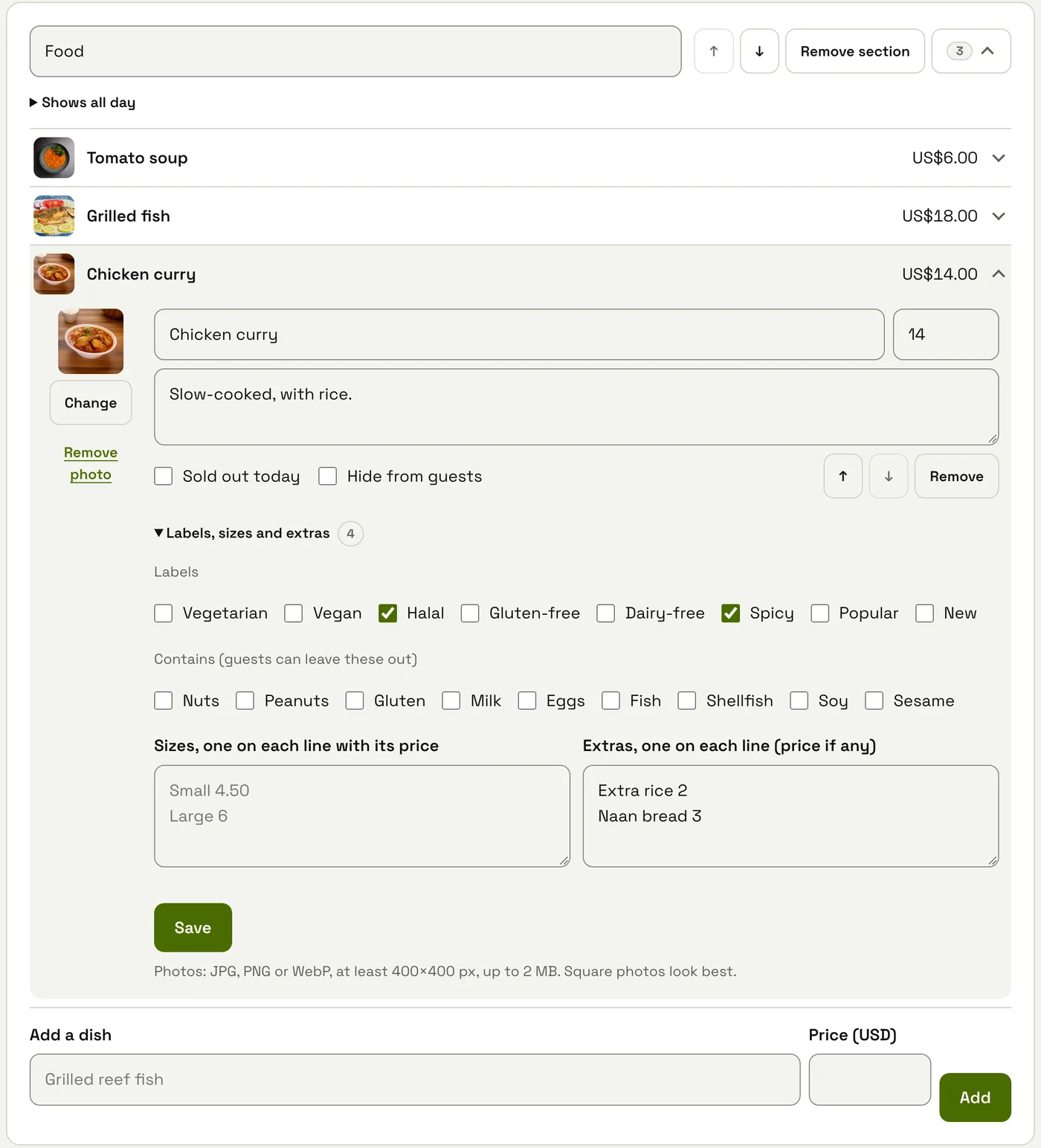
The reason PDF menus go stale is that changing one costs an afternoon. On a menu page every dish is one line: open it, change the price, save. Labels, allergens, sizes and extras sit under the dish, and a photo is one tap from your phone's camera roll.
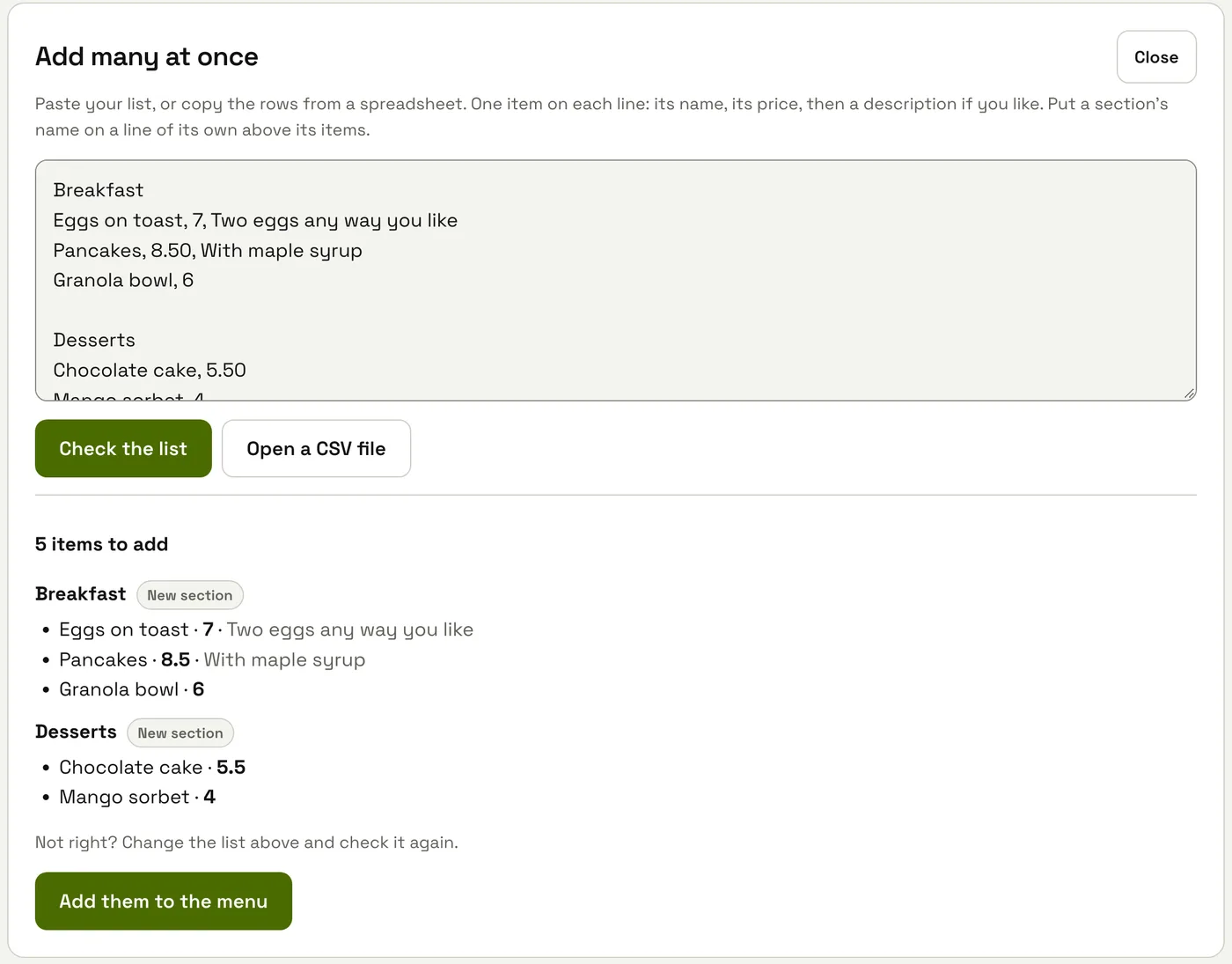
If your menu is already in a document or a spreadsheet, you don't have to type it again (paid plans). Paste the list, one item on each line with its price, and put each section's name on a line of its own. You see what will be added before anything changes.
Print the code once
The printed code opens the page's address, not the menu itself, so you print it once and change the menu as often as you like. A few things make it work better at the table:
- Put it where people sit down, on a stand or a sticker, with a line like "Scan for the menu". Add one on the door or window, so people walking past can read the menu before they come in.
- Print it at least 3 cm wide on tables, larger on the window. Dark on light scans best.
- Keep a few paper menus for guests who prefer them, or whose phone is flat.
- Test it with two different phones before printing a hundred.
The page gets a short address with a code we make, like menu.qrcode.spot/H3HQA29, so nobody can claim a common word like "pizza" for themselves. On Pro and Scale it can open on your own domain instead, like menu.yourcafe.com/H3HQA29. There's more on that in our post on own domains. QR Menus also prints ready-made cards with the code, from 1 to 8 on an A4 sheet.
Not only restaurants
A menu is just a list of things with prices, so the same page works for a salon's price list, a shop's catalogue, a hotel's guest guide or a clinic's services. When you make the page you choose your kind of business, and it uses the right words and starting sections: services instead of dishes, "Not available today" instead of "Sold out".
What a menu page doesn't do
To be clear about the limits:
- Guests can't order or pay on it. It's a page to read. They order with you as usual, and there are no payment fees. If you want guests to call a waiter or ask for the bill from the table, that's Spot Live.
- Nothing is written by AI. You type your own dishes and translations, so what guests read is what you wrote.
- Visitors aren't tracked. They don't sign in or fill anything in. You see how many times the page was opened each day, and that's all.
What it costs
QR Menus is free to start: the Free plan includes one small page of up to 30 items, in one look and one language, with a “Menu page by QR Code Spot” line at the bottom. Paid plans, from $4/month billed annually ($5 monthly), take that line off and give up to 300 items, every look, more languages and more pages (Starter 1, Growth 3, Pro 10, Scale 30). There is nothing extra to pay per item or per scan.
More from the blog
Make your menu page
Add your list, choose a look and print the code.